Voice of the Customer
Medallia Confirms CEO Joe Tyrrell Has Stepped Down
CRM
Oracle Brings More AI Capabilities to Service & Sales Teams
HubSpot Declares “Customer Experience Is Broken”, Unveils the “All-New” Service Hub to Fix It
Speech Analytics
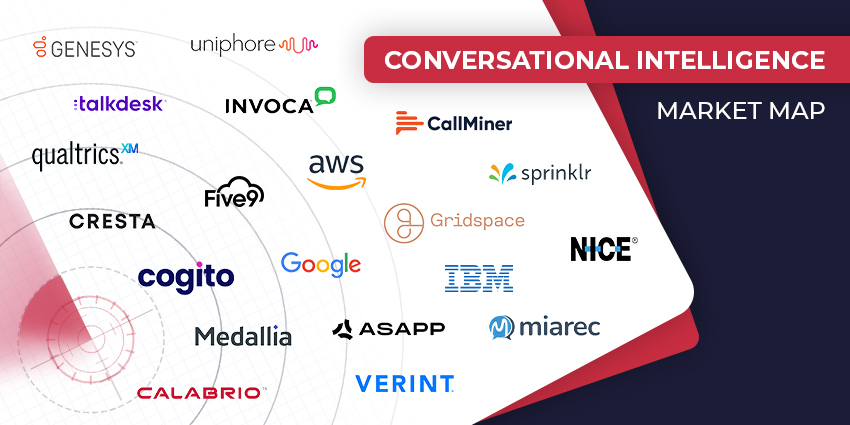
The Top Conversational Intelligence Vendors for 2024
WFO
Salesforce: Contact Center Agents Spend Just 39% of Their Time Servicing Customers
Contact Centre
3 Modern Contact Center QA Challenges (and How to Overcome Them With AI)
The Net Promoter Score 2.0? evaluagent Releases an Expected NPS Score
Loyalty Management
Politeness Pays Off: Boosting Customer Experience with Courtesy
CX TV
Customer Contact Week 2024: What to Expect from the World’s Largest Customer Contact Event
The Google-HubSpot Acquisition Rumors: Could It Really Happen?
Klarna’s Bot Does the Work of 700 Full-Time Contact Center Agents. Could Yours?
BIG CX News – Enterprise Connect 2024: The Roundup ft. Five9, Cisco, Salesforce & More
Content Guru Confirms $150MN CCaaS Megadeal, the Biggest of 2023